
There are some manual steps required that are needed that we cannot do with the API. Please take these steps to finish provisioning your account.
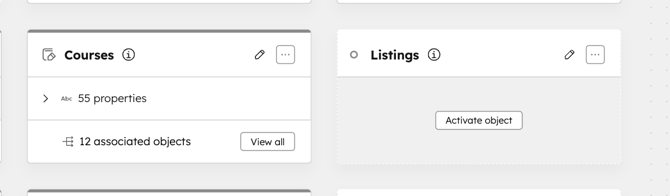
Confirm or Activate the "Courses" object in Data Model Builder
(https://app.hubspot.com/data-model/[YOURHUBID] or
in Settings > Objects > Courses > Activate
- Create Property: HubLMS Impersonation URL
- Group: HubLMS
- Description: Use to access this contact's HubLMS account. You must be an Admin and logged in to HubLMS for this functionality.
- Update the URL in the concatenated string to the URL the LMS is being installed on.
concatenate("https://yourdomain.com/lms/dashboard?impersonationId=",number_to_string([properties.hs_object_id]))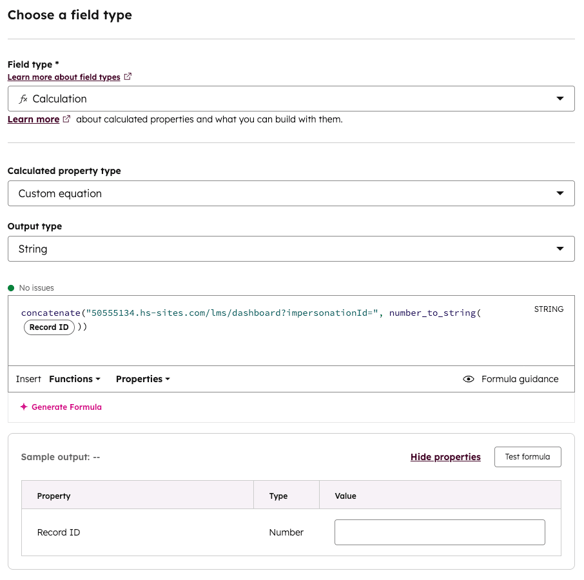
- Record Customization:
- Create a new HubLMS Card for the left sidebar and add all properties under the HubLMS group.
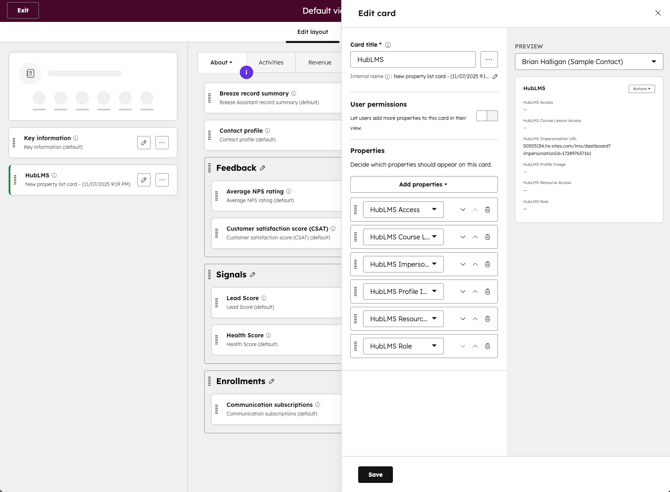
- Create a new HubLMS Card for the left sidebar and add all properties under the HubLMS group.
- Course Object Updates:
- Properties:
- Rename Property Group “Course information” to “HubLMS Course information”
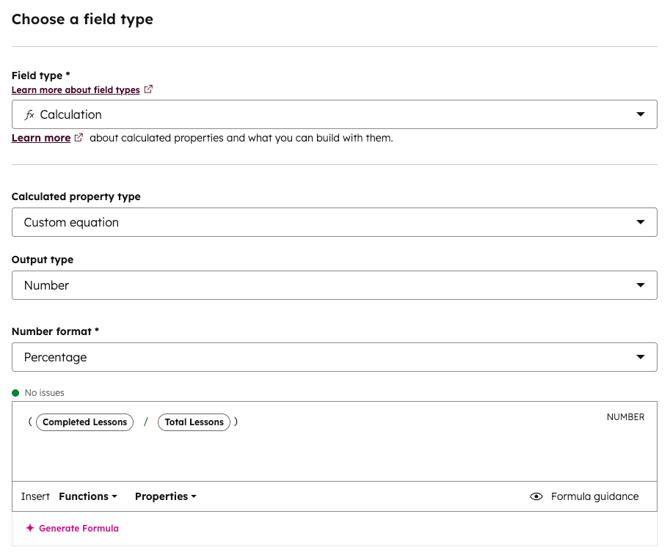
- Create Property: Percent Completed
- Group: My Course
- Description: Percent of course completed by user.
- Record Customization:
- Create a HubLMS Course card and a My Course card on the left sidebar.
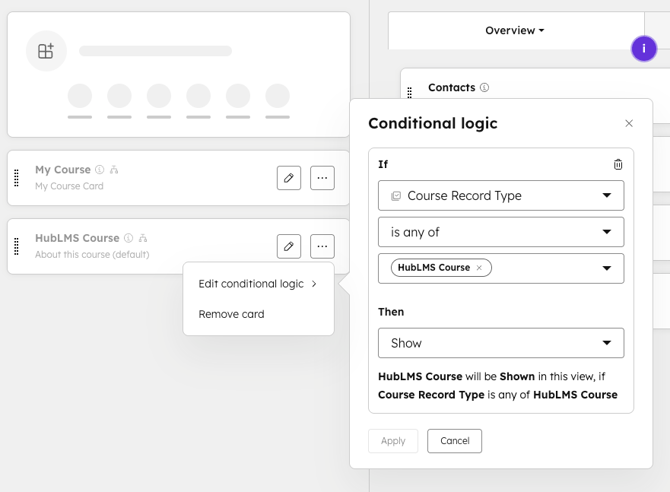
- Add New Card with title “HubLMS Course”
- Properties for Card:
- Access URL
- Categories
- Course Record Type
- Course URL
- Credit Amount
- Course Description
- Course Name
- Record ID
- Course Image
- Language
- Search Keywords
- Sort Order
- Course Status
- Tags
- Total Lessons
- Type
- Course Visibility
- Set conditional logic for the card to only show if Course Record Type is any of HubLMS Course.
- Properties for Card:
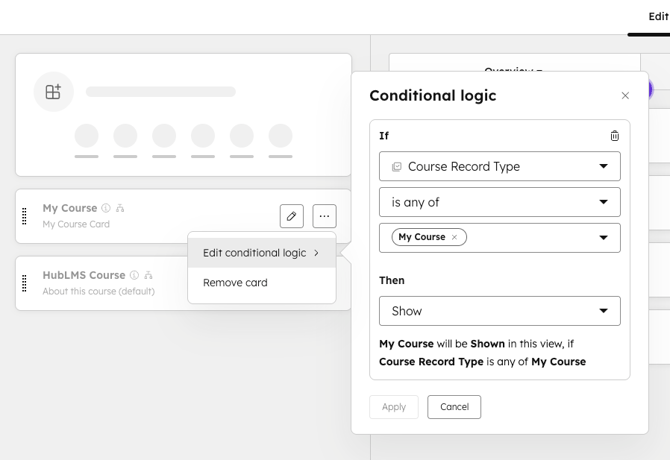
- Add New Card with the title My Course
- Properties for Card:
- Course Record Type
- Course URL
- Course Name
- Record ID
- Course Image
- Total Lessons
- Associated Course Name
- Associated Course Record ID
- Certificate Expiration
- Certificate Share Image
- Completed Lessons
- Completed Lessons List
- Contact Email
- Contact ID
- Contact Name
- Credit Amount
- End Date
- Exam Access
- Exam Attempts Made
- Exam Results
- Exam Score
- Last Lesson URL
- My Course Status
- Percent Completed
- Start Date
- Viewed Lessons
- Viewed Lessons List
- Set conditional logic for the card to only show if Course Record Type is any of My Course.
- Properties for Card:
- Add New Card with title “HubLMS Course”
- Create a HubLMS Course card and a My Course card on the left sidebar.
- Create Course Form:
- Update Create Course Form with the following properties:
- Course Name (required)
- Course Record Type (required)
- Course Status
- Course URL
- Course Visibility
- Access URL
- Course Image
- Search Keywords
- Total Lessons
- Update Create Course Form with the following properties:
- Record Views:
- Add two views:
- HubLMS Courses
- Filter for this one should be Course Record Type is any of HubLMS Course
- My Courses
- Filter for this one should be Course Record Type is any of My Course
- HubLMS Courses
- Add two views:
- Properties:
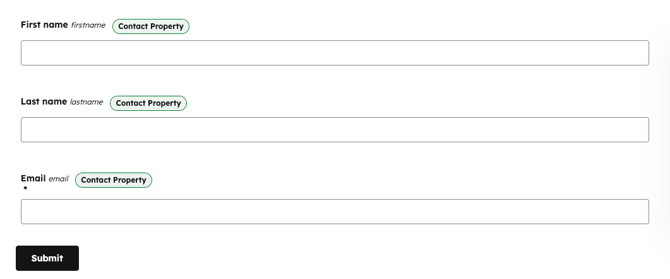
- Create the Following Form:
- Learner Profile [HubLMS]
- Name: HubLMS Access
- Type: Dynamic
- HubLMS Access is any of Yes
- HubLMS Role is known
- Create Membership Access Group
- Learner Profile [HubLMS]
- Page Updates:
- Certificate (Dynamic) [HubLMS]
- Page Settings:
- Advanced:
- Data Source: Course
- Dynamic page slug: Record ID
- Dynamic page title: Associated Course Name
- Advanced:
- Module Updates:
- Under the Certificate section find the Fallback Certificate and make the following changes:
- Update 3rd repeater to:
- Text Content: Course Property
- Course Property: Contact Name
- Update 5th repeater to:
- Text Content: Course Property
- Course Property: Associated Course Name
- Update 6th repeater to:
- Text Content: Course Property
- Course Property: End Date
- Select Date Property checkbox
- Update 3rd repeater to:
- Under the Certificate section find the Fallback Certificate and make the following changes:
- Page Settings:
- Certificate Share (Dynamic) [HubLMS]
- Page Settings:
- Advanced:
- Data Source: Course
- Dynamic page slug: Record ID
- Dynamic page title: Associated Course Name
- Featured Image: Certificate Share Image
- Advanced:
- Module Updates:
- Under the Certificate section find the Fallback Certificate and make the following changes:
- Update 3rd repeater to:
- Text Content: Course Property
- Course Property: Contact Name
- Update 5th repeater to:
- Text Content: Course Property
- Course Property: Associated Course Name
- Update 6th repeater to:
- Text Content: Course Property
- Course Property: End Date
- Select Date Property checkbox
- Update 3rd repeater to:
- Under the Certificate section find the Fallback Certificate and make the following changes:
- Page Settings:
- Example HubLMS Course [HubLMS]
- Select the HubLMS Course module and set the Course to “Example HubLMS Course”
- Learner Profile [HubLMS]
- On the Edit Learner Profile module and select the form Learner Profile [HubLMS] from the drop-down.
- Certificate (Dynamic) [HubLMS]
- Publish pages and apply Membership Access Group to these pages:
- Dashboard [HubLMS]
- Course Listing [HubLMS]
- Example HubLMS Course [HubLMS]
- My Certificates [HubLMS]
- Certificate (Dynamic) [HubLMS]
- Resources [HubLMS]
- Learner Profile [HubLMS]
- Theme Updates
- Set the logo and colors for the client
- Create and set Menu for Header and Footer with these links:
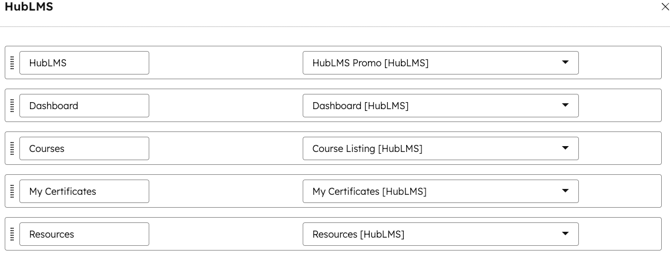
- HubLMS Settings: Found on any LMS page in the Content sidebar menu
- Serverless Functions Location:
- Keep “Local” the task asks to upload the serverless functions as part of the install.
- Set to “External” if the task asks NOT to upload the serverless functions as part of the install.
- Serverless Functions Location:
- Once the above steps are completed, create your contact record, login to the LMS and record the proof of install Loom.